Unreal Engine Niagara tutorial: emitters, module stages, and why particles do not move
The four layers of a Niagara system, why the module stage is the bug that makes an effect look dead, and a full solar system built to prove it: sun, planets, orbits, asteroid belt, every parameter exposed.
A Niagara system is built in four layers: the system asset, one or more emitters inside it, modules stacked into each emitter at a specific stage, and inputs set on those modules. Get the stage wrong and the module compiles fine and does nothing, which is the single most common reason a Niagara effect looks dead for no visible reason.
Here is that structure explained, then a real system built to prove it: a full solar system with a sun, planets on their own orbits, an asteroid belt and stardust, every parameter exposed so it can be driven at runtime.
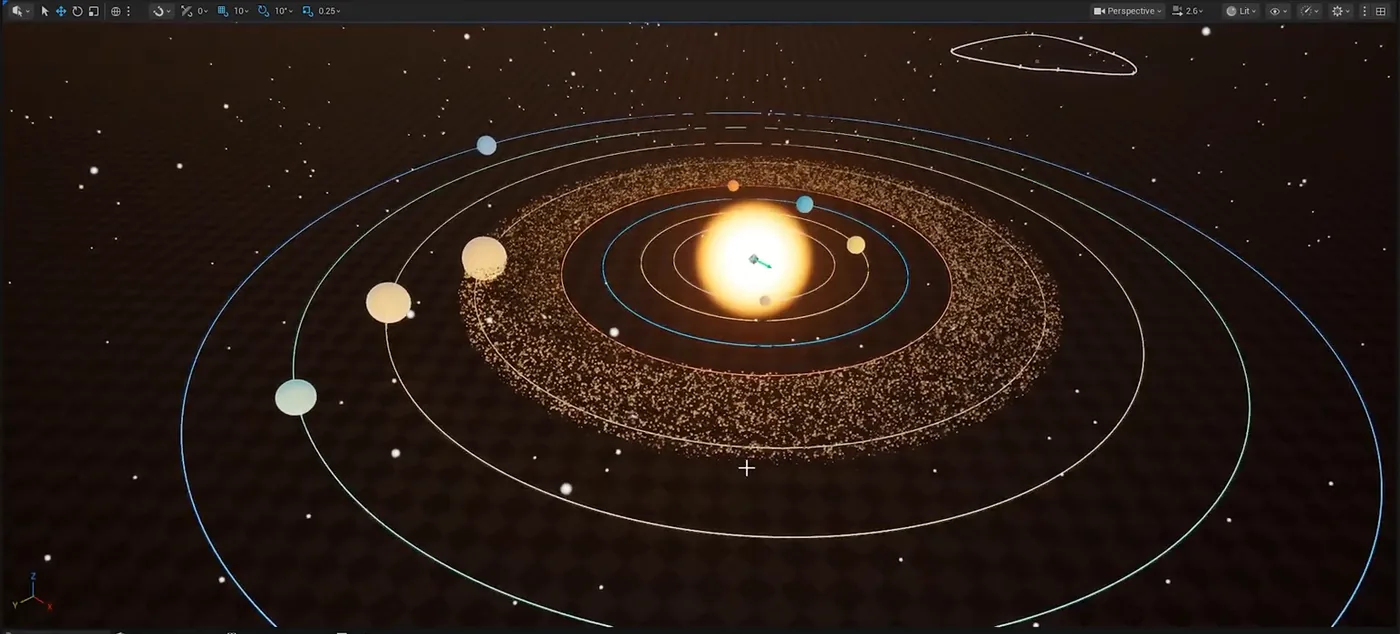
The finished system running in the level. Sun, planets, orbit rings, asteroid belt and stardust are all Niagara, driven by exposed user parameters.
The four layers, and why the stage matters
The system is the asset you place in the world. It owns emitters and the user parameters that drive them.
An emitter is one behaviour: the sun, the asteroid belt, the stardust. A system with five distinct things in it usually wants five emitters, not one clever one.
Modules stack inside an emitter, and each goes into a stage. The four that matter are EmitterSpawn and EmitterUpdate, which run once and every frame for the emitter as a whole, and ParticleSpawn and ParticleUpdate, which run once and every frame for each particle.
The stage is the bug
A velocity module put in EmitterUpdate rather than ParticleUpdate compiles without complaint and moves nothing, because it is running on the emitter rather than on each particle. There is no error to read. If particles exist but sit still, check the stage before anything else.
Building one
These are the commands behind the four layers. Start empty, or from a template when you want something on screen immediately:
Create the system:
bash
cfa create_niagara_system --asset-path "/Game/VFX/NS_SolarSystem"
Add an emitter:
bash
cfa add_niagara_emitter --system-path "/Game/VFX/NS_SolarSystem" --template "Fountain" --emitter-name "Asteroids"
Modules are addressed by full asset path, not short name, and many live under /Niagara/Modules/ with a duplicated name segment. Search rather than typing one from memory:
Find the module:
bash
cfa list_niagara_modules --search velocity
Add it to the correct stage:
bash
cfa add_niagara_module --system-path "/Game/VFX/NS_SolarSystem" --emitter-name "Asteroids" --module-path "/Niagara/Modules/Update/Velocity/VortexVelocity.VortexVelocity" --script-usage ParticleUpdate
See the inputs it actually has:
bash
cfa get_niagara_module_inputs --system-path "/Game/VFX/NS_SolarSystem" --emitter-name "Asteroids" --module-name "VortexVelocity" --script-usage ParticleUpdate
Set one (names can contain spaces, so quote them):
Expose the parameters, or you will be reopening this forever
This is the step that separates a system you can use from a system you have to edit. A user parameter is set from outside: from a Blueprint, from the Details panel on the placed actor, or at runtime while the game is playing.
Expose a value:
bash
cfa add_niagara_user_parameter --system-path "/Game/VFX/NS_SolarSystem" --parameter-name "AsteroidCount" --parameter-type "int"
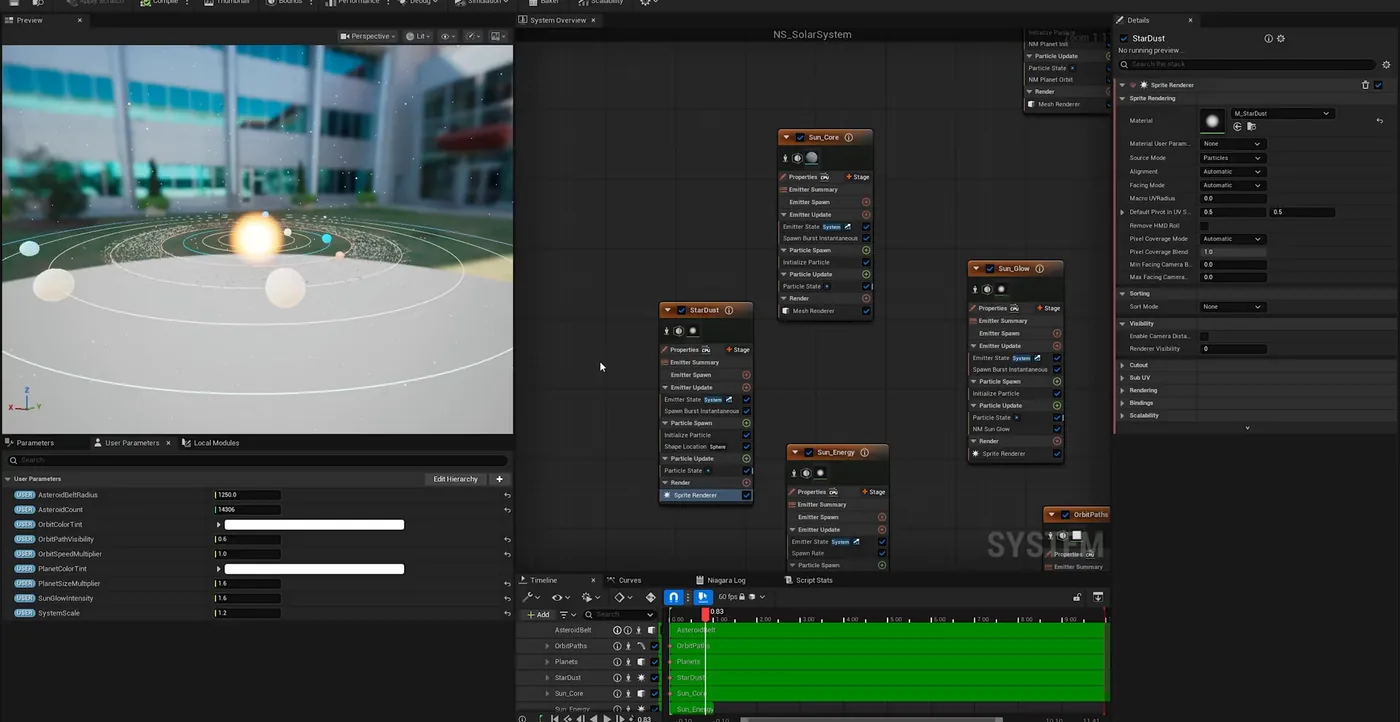
Bottom left is the payoff: asteroid belt radius, asteroid count, orbit colour and speed, planet colour and size, sun glow and overall scale. Change any of them and the whole system updates without opening a single module. The emitters that produce it are on the right.
Compile, then check it properly
A clean compile does not mean a working effect. Three checks catch nearly everything:
Compile:
bash
cfa compile_niagara_system --system-path "/Game/VFX/NS_SolarSystem"
Read the errors, if any:
bash
cfa get_niagara_system_errors --system-path "/Game/VFX/NS_SolarSystem"
Validate the stack:
bash
cfa validate_niagara_stack --system-path "/Game/VFX/NS_SolarSystem"
Put it in the level:
bash
cfa spawn_niagara_effect --system-path "/Game/VFX/NS_SolarSystem" --location "[0,0,200]"
Nothing renders at all?
An emitter with no renderer produces no visible particles no matter how correct the rest is. Check with get_niagara_renderer_info and add one with add_niagara_renderer.
What the agent did with this one
The solar system above came from one prompt. It is worth being specific about what that actually involved, because "AI built it" is not a useful claim on its own.
It authored the materials first, one per planet surface, plus the sun surface, the sun glow and the stardust. Then the Niagara stack: the emitters, their spawn and update modules, and where the stock module set could not do the maths, it wrote its own scratch pad modules in HLSL.
When it hit an error it asked the editor what the error was, rather than guessing, and fixed it. It placed the effect in the level, took a screenshot, and judged its own result from that screenshot before continuing. Whenever something looked wrong it read the whole system back, checked the warnings and errors, and cleared them before moving to the next thing.
It was not untouched. I stopped it once to point out a material override step it had missed. Everything else it ran on its own.
The whole four minute run, sped up, including the errors and the parameter walkthrough. Watch on YouTube.
Where this does and does not help
It is good at the structural work: creating emitters, stacking modules into the right stages, wiring inputs, exposing parameters, and the read-back loop that catches a module in the wrong place. That is most of the tedium in Niagara and almost none of the interesting part.
It is not good at art direction. It will build the effect you described, and whether that effect looks good is still your call and your tuning. What the exposed parameters buy you is that the tuning happens on sliders rather than by reopening modules.
Niagara is one of 45 categories, and the rest work the same way. 1500+ commands across 45 categories, on UE 5.6, 5.7 and 5.8. Drive it from Claude Code, Cursor, VS Code, or any MCP client.
Three day free trial. No card, nothing locked off, and it runs on your real project.